Showing posts with label Query/400 Tutorial. Show all posts

Friday, October 16, 2009

(Query/400 Tutorial) Selecting definition steps when defining a Query/400 query

When you specify option 1 (Create) on the Work with Queries display, you are shown the Define the Query display (another key display) where you select one, several, or all of the 11 definition steps (options) needed to define your query.

The only definition step that you are required to select is Specify file selections. You do not have to select all of these definition steps—use only those that you need. Most of these steps do not have to be done in a specific order (although the order shown is recommended when you need to use most of them). Each step you select is a separate process that shows you one or more displays as you need them.
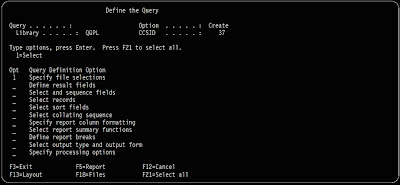


The Define the Query display is the primary display from which you start defining your query.
From this display, you can select options that define, generally speaking, the four major parts of a complete query definition:
- The first six options define the query itself, including the files you want to query, the fields to be used in each file, and the records to be selected.
- The next three options define what the report is to look like, including which columns are to be summarized and when (using report breaks).
- The second to last option defines where the report is to go and what values are to be used when it is sent there.
- The last option defines how numeric calculation results are processed and if substitution
characters are allowed during the conversion of character fields.


You Might Also Want To Visit The Following Tutorial Posts:
AS/400 For Dummies
AS/400 Tutorial
SQL/400 Tutorial
Query/400 Tutorial
Read More...

Wednesday, September 30, 2009

(Query/400 Tutorial) Starting Query/400 query definition

You start query definition by selecting option 1 (Create) on the Work with Queries display and, optionally, by specifying the name of the query you want to create.

To specify a query name, you can type the name of the query (Query prompt) that you want to define, and you can specify the name of the library (Library prompt) in which it is to be stored. Or, you can look at a list of query names or library names to select the query name and the library name you want to use.

For example, you might specify CUSNAMQRY as the name of a query definition that you would use to query the CUSTNAME file. If you do not specify a library name, the query is stored in the library identified in the Library prompt.


If you are creating a query (definition), you do not need to name it unless you want to save it for later use. (The query does not exist as a definition object on the system until you save it.) If you do name it, use the normal rule for naming objects, which follows:


The query name must begin with an alphabetic character (A through Z, $, #, or @) and can be followed by no more than 9 alphanumeric characters (A through Z, 0 through 9, $, #, @, ., or _).

Note: To use this query in a multilingual environment, use A-Z or 1-9.

Because most system-supplied objects on the AS/400 system begin with Q, your query names should not start with a Q.

If you position the cursor on the Query prompt and press F4 (Prompt) to show a list, it contains the names of all the queries that are in the library (or libraries) indicated by the Library prompt. You can get a smaller list by typing a generic name in the Query prompt before you press F4. The generic name shows in the Subset prompt when the list is shown.


When you are creating a query, you can check this list to see what names are already used before you choose a new name. Type the new name in the first list position (in its input field) and type a 1 next to it.


You Might Also Want To Visit The Following Tutorial Posts:
AS/400 For Dummies
AS/400 Tutorial
SQL/400 Tutorial
Query/400 Tutorial

Read More...

Friday, September 25, 2009

(Query/400 Tutorial) Getting Started With Query/400

Getting started with Query/400
You can access Query in a variety of ways. To use Query, you can do any of the following:
- Use the Work With Query (WRKQRY) command by typing WRKQRY and pressing the Enter key. This
causes the Work with Queries display to appear.
-Select option 3 (Decision support) on the Office Tasks (OFCTSK) menu. From the Decision Support display, select option 2 (Query). This causes the Query menu to appear.
- Select option 8 (Decision support) on the Office menu. From the Decision Support display, select option 2 (Query). This causes the Query menu to appear.
- Use the Start Query (STRQRY) command by typing STRQRY and pressing the Enter key. This causes the Query menu to appear. Typing GO QUERY and pressing the Enter key has the same effect.
- While using OfficeVision, press F17 on the edit display and then select option 1 (Query). This causes the Work with Queries display to appear.
- While using the DisplayWrite 4 program, press the control key and F6 on the edit display. Select option 2 (Get query file option). This is explained in detail in the DisplayWrite 4 or DisplayWrite 5 help information. This causes the Work with Queries display to appear.

From the Query menu, you can choose to work with queries, run a query, delete a query, work with files, or do an office-related task.

From the Work with Queries display you can:
- Create, change, copy, delete, display, print, or run a query if you came from the Query menu or the WRKQRY command.
- Create,change, copy, delete, or display a query definition, or you can do direct merge, column list merge, or multicopy merge if you came from OfficeVision.
- Create, change, copy, delete, or display a query definition, or you can do direct merge if you came from the DisplayWrite 4 or DisplayWrite 5 program.


You Might Also Want To Visit The Following Tutorial Posts:
AS/400 For Dummies
AS/400 Tutorial
SQL/400 Tutorial
Query/400 Tutorial

Read More...

Thursday, September 24, 2009

(Query/400 Tutorial) Query/400 fundamentals

Several elements on your system organize and store information, or data, so that you and other system users can work with it to get the results that you need. The following topics introduce those elements, tell you about them and how they relate to you and Query, and direct you to other publications where you can find more information.

Files, fields, and record formats in Query/400
----------------------------------------------
Information, or data, is organized and stored on your system in various forms, primarily in objects called database files (usually referred to as just files). A file contains individual units of information, called records, that each contain related pieces of data. Each piece of information in a record is called a field, and how the fields are organized is defined in a record format (often just called a format).

When you run a query to produce a report, Query uses the files, fields, and record formats to get the information you want from the database, in the form of records, and uses those records to produce a query report.

Double-byte character set (DBCS) fields in Query/400
----------------------------------------------------
Some countries use pictographs or symbolic characters in their language. DBCS fields must be used for such data. As a general rule, if your national language uses single-byte character set (SBCS) characters, your files do not contain DBCS data. You can ignore any on-line help information that refers to DBCS data.

Notes:
1. To properly display DBCS data, you need a DBCS-capable display.
2. In Query, the following naming convention is used for DBCS data:
- Character data refers to both SBCS and DBCS character data.

- DBCS data refers to any type of DBCS data, including bracketed-DBCS and DBCS-graphic data types.
- Bracketed DBCS refers to DBCS-open, DBCS-either, or DBCS-only data types.

UCS2 level 1 character set support in Query/400
-----------------------------------------------
UCS2 Level 1 is a 16-bit encoding for graphic characters. When doing business in a worldwide environment you need the ability to enter and process data from more than one national language. For example, a list of customer names may contain German, Greek, English, and Thai characters that must be printed or displayed on the same device at the same time.

Query/400 treats UCS2-graphic data the same as GRAPHIC or VARGRAPHIC data. A UCS2-graphic field is a DBCS-graphic field tagged with a UCS2 CCSID.

The VARCHAR and VARGRAPHIC functions help you write queries that include UCS2 data.

Data definition languages and utilities support in Query/400
------------------------------------------------------------
Query can query data in files that are created using different data definition languages or products. Although the description given above applies to all the files on your system, the names or concepts that might be used depend on the programming language or product (like IDDU, DDS, and DB2 UDB for iSeries) that is used to define the files.


You Might Also Want To Visit The Following Tutorial Posts:
AS/400 For Dummies
AS/400 Tutorial
SQL/400 Tutorial
Query/400 Tutorial
Read More...

(Query/400 Tutorial) What is Query/400?

Query/400 is an IBM licensed program and a decision support utility that can be used to obtain information from the AS/400* (AS/400*) database. It can obtain information from any database files that have been defined on the system using Operating System/400* (OS/400*) data description specifications (DDS), the OS/400 interactive data definition utility (IDDU), or the IBM* Structured Query Language/400 (DB2 UDB for iSeries*) program.


You use Query to select, arrange, and analyze information (data) stored in one or more database files to produce reports and other data files. You can create your own query definitions and then run them, you can run existing queries that you did not create, or you can even run a default query against a particular database file (using an unnamed query). You determine what data the query is to retrieve, the format of the report, and whether it should be displayed, printed, or sent to another database file.

You can use Query to obtain information from a single file or a combined set of up to 32 files. You can select all the fields, or a few of the fields and organize them as you want them to appear in the type of output chosen. You can have all records in the files included in the output, or you can select only a few to be included, using record selection tests. These and other functions are described in detail later.

This tutorial begins by introducing basic information about Query, and then it introduces all the major tasks (such as creating, displaying, or running query) that can be done using Query, including the data/text merge options that can be used by IBM OfficeVision*, DisplayWrite* 4, and DisplayWrite 5 users.


You Might Also Want To Visit The Following Tutorial Posts:
AS/400 For Dummies
AS/400 Tutorial
SQL/400 Tutorial
Query/400 Tutorial

Read More...